Challenge Overview
Competition Overview
For this challenge, we’d like to build some custom drivers that will play video streams from client provided cameras.
Driver is actually just an XML configuration file that specifies parameters of the camera that can be tested on Composer, which is a simulator app from the company.
To start developing these drivers, you’ll will need to install the following tools:
-
Driver Editor: http://update.control4.com/DriverEditor/DriverEditor_Installer.exe
-
Composer Pro: http://update2.control4.com/release/2.6.0.455577-res+Composer/win/ComposerPro-2.6.0.exe
Composer Pro requires a license, which we will provide in the challenge forum.
Camera Models to support
We need a driver created for each of the following camera urls:
-
rtsp://admin:888888@74.93.230.35/channel=1/subtype=0
-
rtsp://admin:888888@74.93.230.35/channel=2/subtype=0
-
rtsp://admin:888888@74.93.230.35/channel=3/subtype=0
-
rtsp://admin:888888@74.93.230.35/channel=4/subtype=0
-
rtsp://admin:888888@74.93.230.35/channel=5/subtype=0
-
rtsp://admin:888888@74.93.230.35/channel=6/subtype=0
For this challenge, the only supported function is live streaming via the URLs above. Snapshots, PTZ, multiple cameras, etc are all out of scope.
Getting Started Guide
Please check this video to understand how to build a customer driver and test it: https://drive.google.com/file/d/0B9bY2DOzMq65Y2RKUEZCdmd4Nk0/view?usp=sharing
A few notes:
-
Instead of using “sample/queryString?parameter=value¶meter2=value2” as query string, you should use “channel=1/subtype=0” instead:
-
-
After you create a driver, you should just save it to a folder that’s not inside the Control4’s application folder (example: Desktop)
-
After the driver is created, open ComposerPro and add the driver you just created:
-
-
Update camera settings as shown below:
-


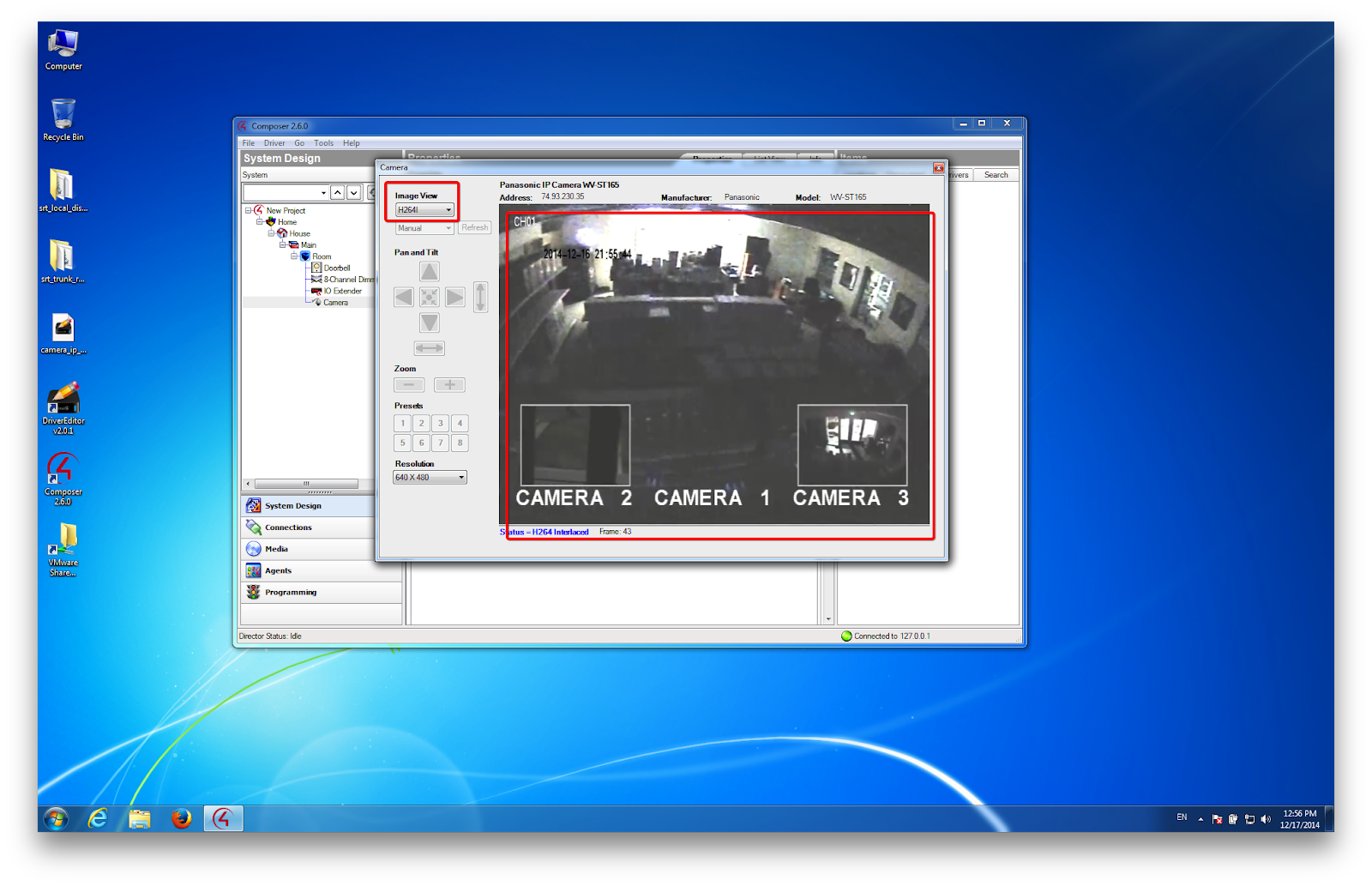
Now select the correct Image View and you should see the video playing:
Final Submission Guidelines
Submission Deliverables
-
The custom drivers you created
-
A screencast showing the configuration/simulation